How to Use a Stopwatch for Interval Training
Interval training — alternating short bursts of hard effort with recovery — is one of the most time-efficient ways to build fitness, and it lives or dies on accurate timing. A browser stopwatch with lap tracking covers most of what a dedicated sports watch does, without buying anything. This guide walks through setting up a session, recording each interval, and reading your splits once you're done.
Set up your session with a preset
Cronometro's stopwatch ships with built-in presets tuned for specific activities — Running Track and Swimming both default to centisecond precision with lap sound on and a short pre-start countdown, so you're not fumbling with settings mid-warm-up. Tap a preset before you start and the display, sound, and countdown are all configured in one go.
There's also a preset built specifically for this style of training: HIIT uses the same centisecond precision and lap sound, and adds a tick sound between reps plus a low ambient drone in the background, styled with the Ember visual theme — a setup purpose-built for interval work rather than a single continuous effort.
- Running Track — centisecond precision, lap sound on, 3-second countdown.
- Swimming — centisecond precision, lap sound on, 5-second countdown.
- HIIT — centisecond precision, lap sound plus a per-second tick and background drone, 3-second countdown.
Recording each interval as a lap
Start the stopwatch at the beginning of your session and hit Lap at the end of every work interval (and again at the end of every recovery interval, if you want that split recorded too). You don't need to look down and do mental math between reps — the number on screen for each lap is already the individual split, not the cumulative time.
What each lap row shows
Every lap is timestamped and added to a table with three columns:
- The lap's own time (its individual split, already calculated for you)
- The running total elapsed since the session started
- The time of day the lap was recorded
Reading your splits afterward
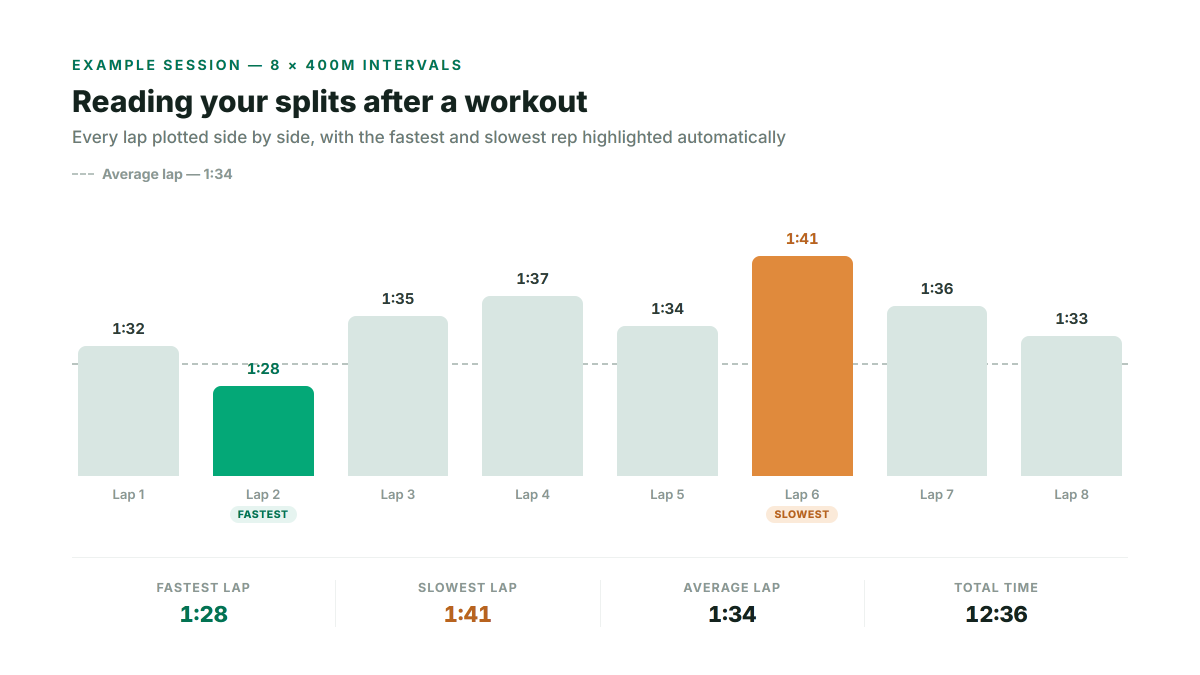
Once you're done, the summary line above the lap table shows your fastest lap, slowest lap, average lap, and total time, and the fastest/slowest rows are highlighted directly in the table. A simple bar chart plots every lap side by side, which makes pacing patterns obvious at a glance — a steady descending trend, a fade in the back half, or one outlier rep that dragged the average up.
What the summary line shows
- Fastest lap and slowest lap — highlighted directly in the lap table, no scanning required
- Average lap — your typical pace across the whole session
- Total time — the full session length, work and recovery combined
Keeping a record across sessions
If you want a permanent log rather than just today's numbers, export the lap table to CSV or Excel with one click and drop it into whatever spreadsheet or training log you already use.
- Export the full lap table to CSV or Excel in one click
- A quiet personal-best chip tracks your longest duration and highest lap count
- Today's session count is tracked in the background, so you can see at a glance whether today beat your usual
Hands-free during the set
Space starts or resumes, L logs a lap, P pauses, and R resets — all without touching the mouse, which matters when your hands are on a barbell, a set of pull-up bars, or the edge of a pool.
Keyboard shortcuts
- Space — start or resume
- L — log a lap
- P — pause
- R — reset
If you'd rather not look at your phone or laptop screen at all, turning on voice announcements reads out milestone times as they pass.