How to Track and Export Lap Times for a Race or Workout
A single race or workout is easy enough to review on screen. Once you're comparing sessions over weeks or months, or handing times to a coach, you need the data somewhere more permanent than a browser tab. The stopwatch's export tools are built for exactly that — recording every lap automatically, then getting it out to a spreadsheet or a saved session whenever you need it.
What gets recorded
Every time you press Lap, that split is added to a table. Nothing needs to be typed in manually — the table fills in as you go, and it stays populated (saved to your browser) even if you close the tab and come back later.
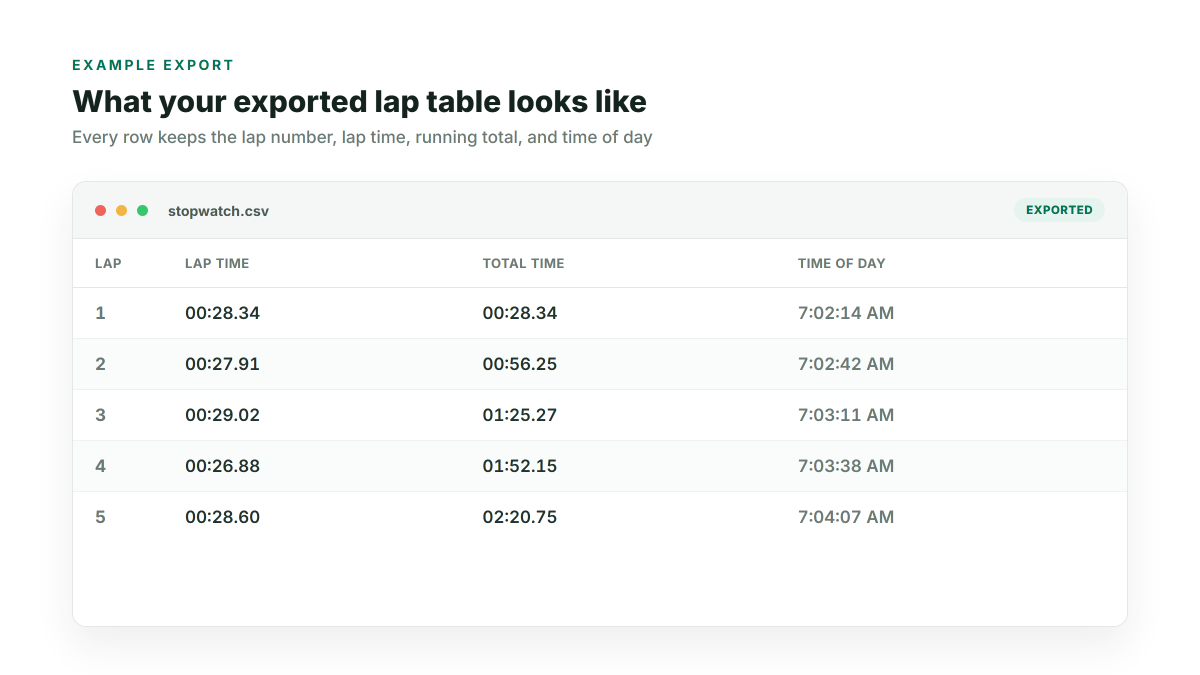
The four columns in every lap row
- Lap — the lap number, in order
- Lap Time — that interval's own split
- Total Time — the running total elapsed up to that point
- Time of Day — the wall-clock time the lap happened
Exporting to CSV or Excel
Two export buttons sit above the lap table once you've recorded at least one lap, and both use those same four columns:
- CSV — a plain comma-separated file that opens in Google Sheets, Numbers, or any spreadsheet tool, or that you can pipe into a script if you're doing your own analysis.
- Excel (.xlsx) — a proper workbook with the same columns, ready to drop into an existing training-log spreadsheet without a conversion step.
Why this matters for coaching and race analysis
Raw lap times are more useful once they're outside the browser: a coach reviewing a swimmer's 100m splits across a season wants them in one spreadsheet, not screenshotted from a dozen separate sessions. A runner comparing this week's interval session to last week's needs the numbers side by side, not re-read off a phone screen. Exporting turns each session into a row of data you can actually chart, average, or compare over time.
Saving a session for later without exporting
If you just want to come back to a specific session later — not export it anywhere — the "Save session" option keeps up to 5 named sessions with their full lap history intact, so you can restore a session (say, "5K time trial — March") and see the exact laps again, without needing a spreadsheet at all. This is separate from the automatic personal-best and today's-stats tracking, which only remembers summary numbers, not the full lap list.
Nothing leaves your device until you export it
Every lap, saved session, and personal record lives in your browser's local storage — see the Privacy Policy for the full explanation. The CSV/Excel export is a direct, client-side download; your data is never uploaded to a server as part of exporting it.