How to Set Up a Reliable Wake-Up Routine with Repeating Alarms
A wake-up alarm that has to be recreated every night is one you'll eventually forget to set. A good weekday routine needs an alarm that repeats on its own, wakes you up gently rather than jarringly, and gives you a real amount of extra time when you actually need to snooze — not an arbitrary default.
Setting an alarm to repeat automatically
When creating an alarm in the alarm clock, tap the days of the week it should repeat on (Monday through Friday for a work routine, for example). It'll keep firing on those days indefinitely — you never need to recreate it.
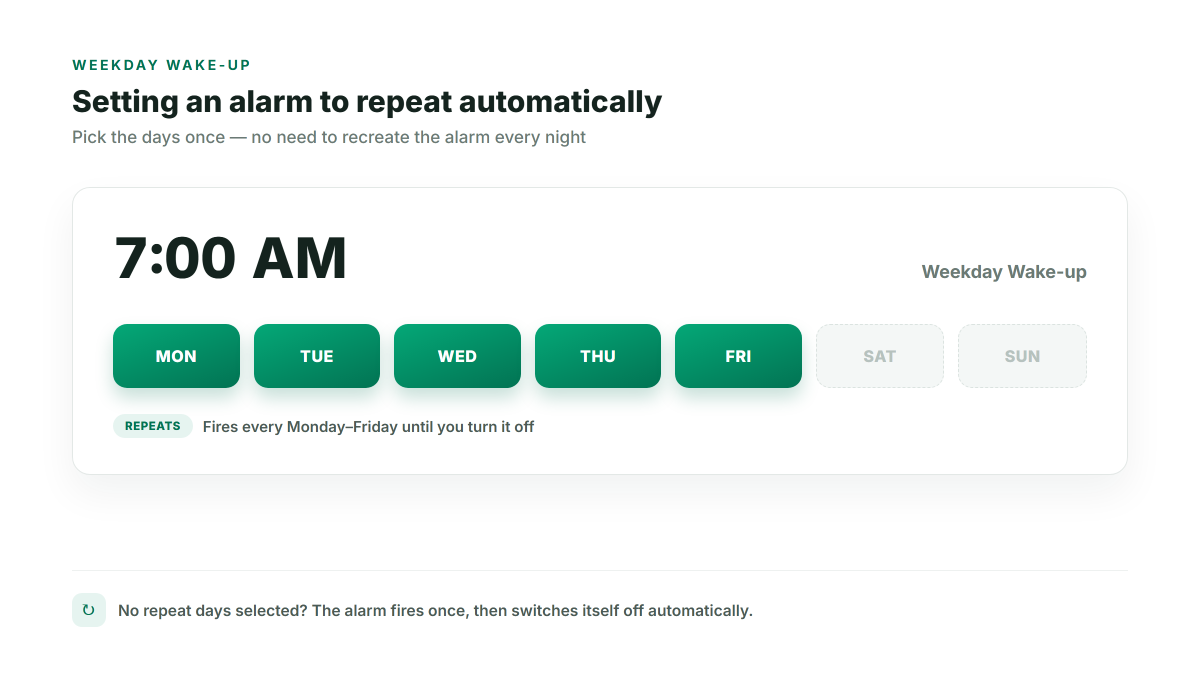
A one-time alarm with no days selected, by contrast, automatically switches itself off after it rings once, which is the right behavior for a single early flight but the wrong one for a daily routine.
Choosing how long snooze actually buys you
The default snooze length is 9 minutes, a holdover from mechanical alarm clocks, but there's no reason to keep it if it doesn't match how you actually wake up. Open Settings and change the snooze duration to whatever number of minutes genuinely works for you:
- 5 minutes — for a quick doze
- 9 minutes — the default
- 15 minutes — if you know you need a real second alarm's worth of time
Waking up to volume that ramps up, not blasts
Turn on Fade-in volume in Settings and the alarm sound starts quiet and ramps up to full volume over roughly 12 seconds instead of hitting you immediately at full volume. It's a small change, but it makes the first few seconds of waking up noticeably less jarring — closer to a sunrise alarm than a fire drill.
Getting the time picker right without typing
The quick-time buttons (6:00 AM, 7:30 AM, and other common wake times) fill in the hour and minute fields with one tap, and any time you already have an alarm set for is visually marked, so you can see at a glance which slots are already taken before adding another.
Putting it together
A typical weekday routine: create one alarm at your wake time, select Monday–Friday as repeat days, turn on fade-in volume, and set snooze to whatever actually works for you. From then on it just runs — no re-creating it each night, and the one-time-alarm auto-off behavior never applies to it since it has repeat days set.