How to Plan a Meeting Across Time Zones

Finding a meeting time across time zones the manual way means adding or subtracting hours in your head, then double-checking you didn't get confused about who's ahead of whom — and daylight saving time changes the answer twice a year in many countries. A world clock built with this in mind removes the arithmetic entirely.
Start by saving the cities that actually matter
Add the cities of everyone you regularly meet with to your favorites in the world clock — this only needs doing once. Each card shows that city's current time, updating live, along with a day/night indicator so you can tell at a glance whether a time falls in someone's working hours or the middle of their night.
Using the Meeting Planner
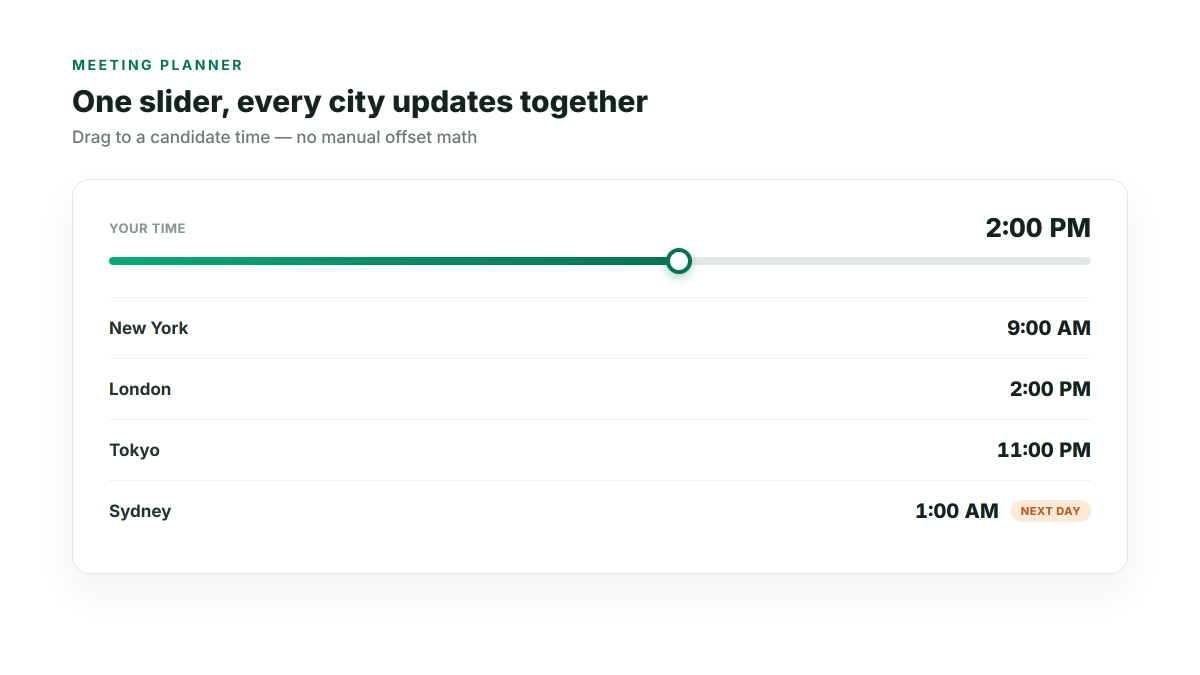
Below your city cards, the Meeting Planner has a single time slider representing your own local time. Drag it to a candidate meeting time, and every favorite city updates simultaneously to show what that same moment looks like for them — no manual offset math, and it correctly accounts for each city's own daylight saving rules for whatever date you pick, not just today's rules.
Checking a specific future date, not just today
Time zone offsets aren't fixed — a city can be 8 hours ahead of you today and 9 hours ahead in three months if only one of you observes daylight saving time. The Meeting Planner's date picker lets you check a specific future date, so a meeting you're scheduling for next month reflects the offsets that will actually be in effect then, not the ones in effect right now.
Spotting when a meeting spills into the wrong day
Each city's row in the planner shows a badge if the chosen time falls on the next day or the previous day relative to your own date — easy to miss with manual math, and the exact kind of mistake that turns "let's meet Tuesday morning" into someone joining a call at 2 AM by accident.
Reordering your list as priorities shift
If you work with some time zones more than others, drag city cards to reorder them, or use each card's menu to move it to the top, move it up or down, or remove it — your saved order persists the next time you open the page, so your most-checked cities stay at the top.