Best Flip Clock Setups for Desk, Bedside, and Presentations
A flip clock works well in a lot of different settings, but a desk clock, a bedside display, and a presentation screen actually want different things from it — different brightness, different size, different level of visual noise. The flip clock's quick modes bundle the right combination of settings for each so you don't have to configure them individually.
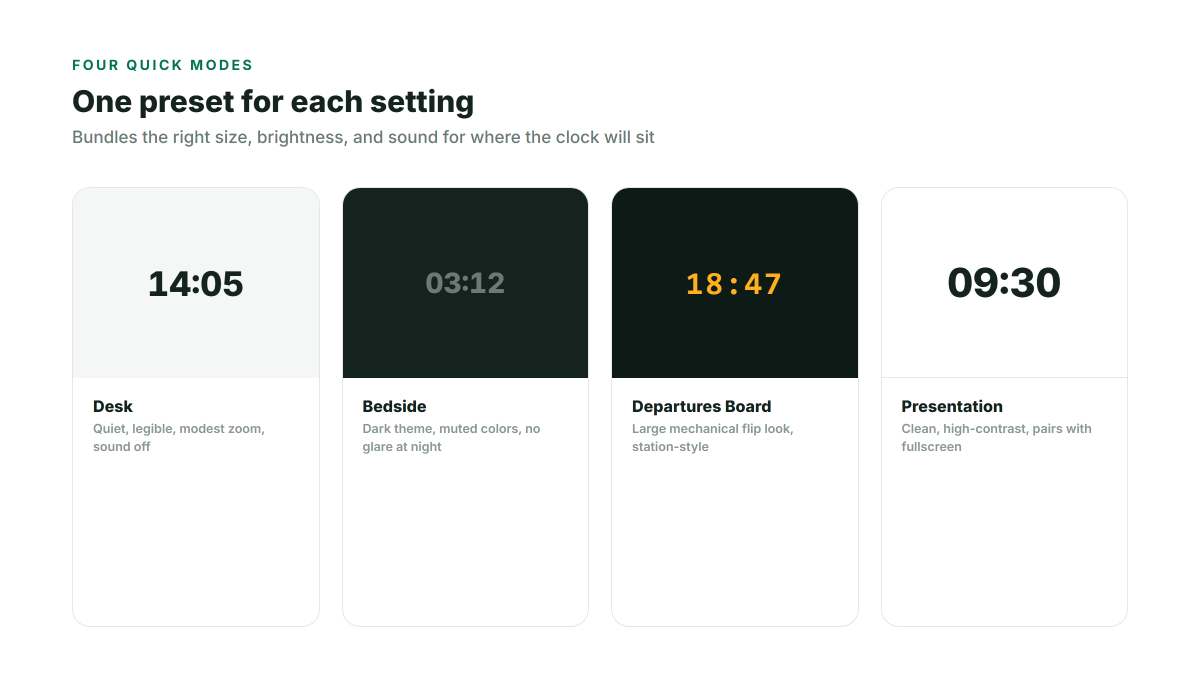
Desk: quiet, legible, out of the way
For a monitor sidebar or a second screen at your desk, the Desk quick mode uses a plain digital-style layout at a modest zoom level with the flip sound off — legible at a glance without demanding attention or making noise every minute during a work call.
Bedside: dim and undistracting overnight
A clock you're going to look at in a dark room needs a darker theme and no unnecessary sound. Bedside mode pairs a dark background with a muted color scheme, so it's readable if you glance over at 3 AM without lighting up the whole room.
Departures Board: the classic flip look, large
If what you actually want is the mechanical flip-card aesthetic at a large, attention-grabbing size — the kind of display you'd see at a train station — the Departures Board preset switches to the flip animation itself and scales it up, well suited to a shared screen or a kiosk-style display.
Presentation: for a classroom or meeting room
Running a timed activity in front of a room needs a clean, high-contrast display with no unnecessary decoration and no flip sound competing with whoever's speaking. Presentation mode strips things down accordingly and pairs well with fullscreen — click the fullscreen icon and the display fills the screen at maximum size, with Escape or the icon again to exit.
Fine-tuning beyond the presets
Every quick mode is a starting point, not a locked configuration — from there you can still:
- Switch between flip, digital, and analog views
- Toggle 12-hour or 24-hour format
- Turn the hourly chime or spoken-time announcement on or off
- Set a custom background from the built-in gallery or your own uploaded photo
Whatever you land on is remembered automatically the next time you open the page, so a setup you've dialed in once doesn't need to be redone.
Embedding it elsewhere
If you want the same clock on your own website or a Notion/dashboard page rather than a standalone tab, the built-in embed generator produces a ready-to-paste HTML snippet with its own size and color settings.